电平匹配
任意两个,相同响度。
打开 Match level,A 和 B 中较响的一个会降低到较轻那个的实测响度。较轻的文件保持原有电平,任何文件都不会被提升。用 A、B 或 S 切换时,播放头停在原处,无论是否在循环中。
- 较响的文件降低,没有任何提升
- Linked time 保持同一播放位置
- 用 L 循环一个区段

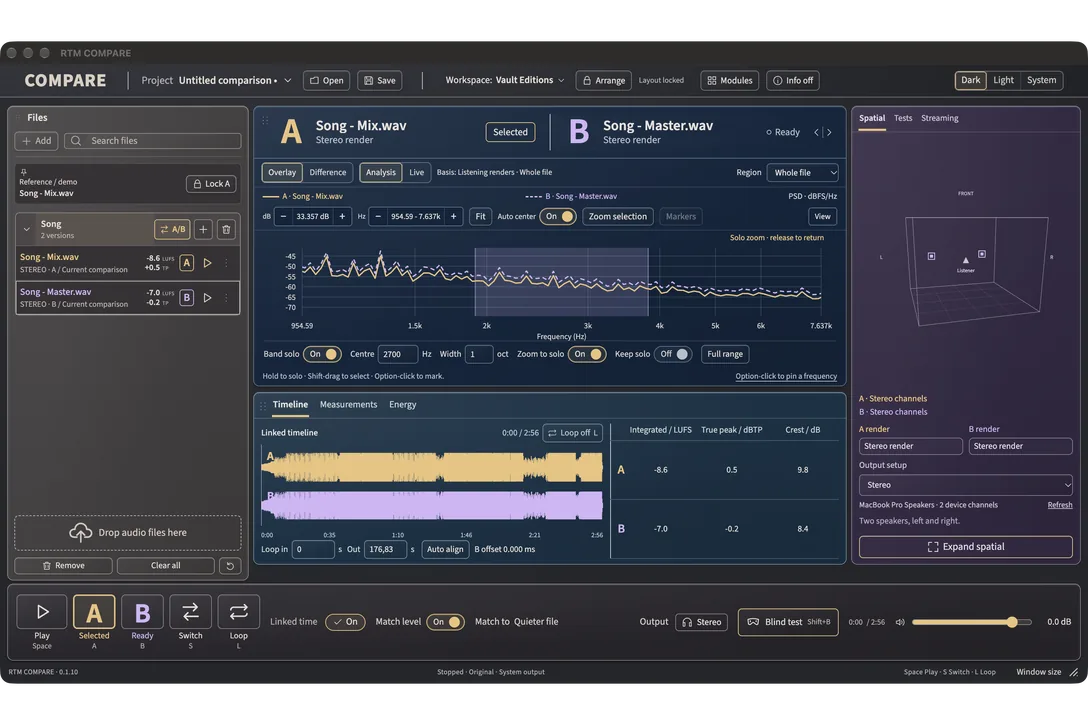
RTM COMPARE 是终极的比较与测量工具,包含一个应用和一个插件。比较混音、母带、版本和参考曲,Spotify 等应用,实时的 DAW,Atmos 与立体声,以及插件之间的差别。然后测量真实存在的内容:差异、响度与真峰值、交付检查、编码过载、Atmos 合规,以及插件的延迟、曲线和失真。
On Windows, also install the plug-ins (VST3 and AAX).
€33.00 · 您购买的是一次性付费许可。
Free with 4 or more different plug-ins in one order. We add RTM COMPARE to your RTM account within a day of your order.
COMPARE 用同一种方式测量每个文件,并在同一个播放头上以同一响度播放任意两个文件,让你听到的是差别,而不是音量。然后它告诉你差别在哪里:在图表上,在读数中,以及在 29 个用于混音周边工作的模块里。
打开 Match level,A 和 B 中较响的一个会降低到较轻那个的实测响度。较轻的文件保持原有电平,任何文件都不会被提升。用 A、B 或 S 切换时,播放头停在原处,无论是否在循环中。
在频率和电平两个方向缩放频谱。按住 Shift 拖过一段范围,再点 Zoom selection,图表就会被这段范围填满;Fit 按屏幕上可见的内容调整电平范围;Auto center 让曲线保持在视图中。独奏一个频段,视图会跟随它;松开独奏,视图回到原来的位置。缩放只改变视图,从不改变音频或读数。
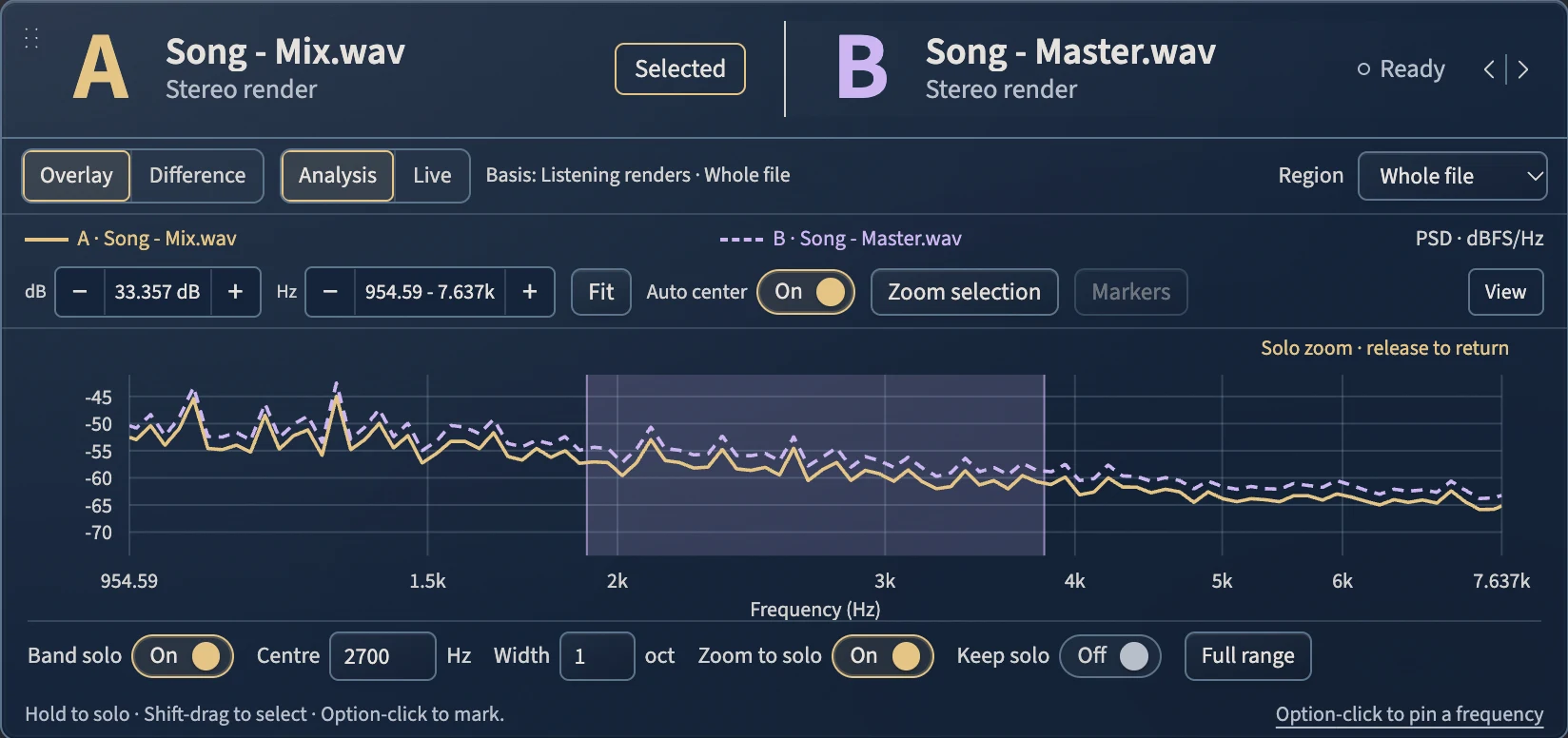
按住频谱,只播放该频段。拖动以扫频,滚动以改变宽度,按 A、B 或 S 在同一时刻、同一频段内切换音源。以 Hz 输入中心频率、以倍频程输入宽度,或用 Keep solo 锁定。按住 Option 点击,可在想回头查看的频率上做标记。
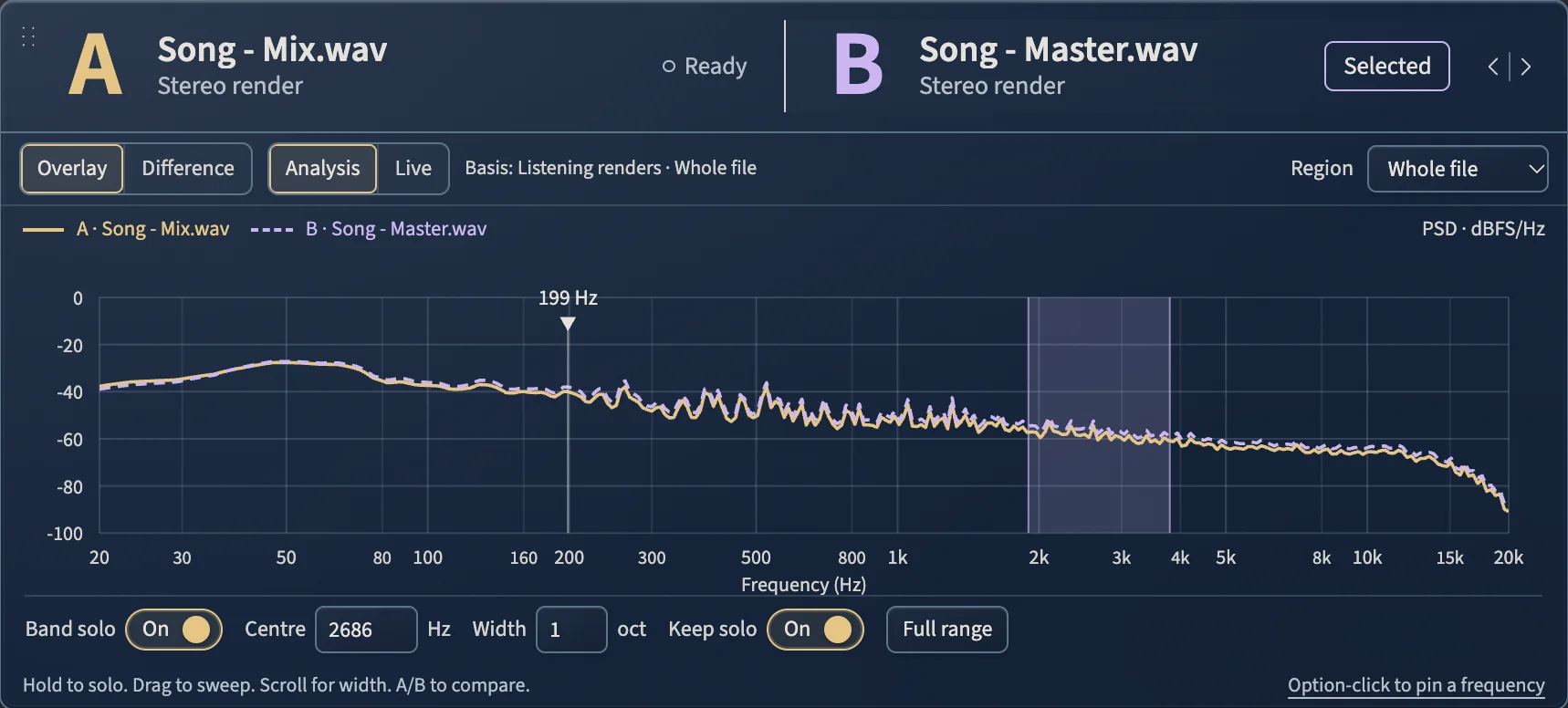
把 ADM BWF 和立体声文件载入同一个对比。Spatial 视图会在立体声声道旁绘制 ADM 文件中编写的对象和声床,并在共享时间线上随文件移动。可以用立体声音箱、通用双耳耳机预览,或 5.1 到 7.1.4 的扬声器布局聆听,并在同一输出上切换 A 和 B。
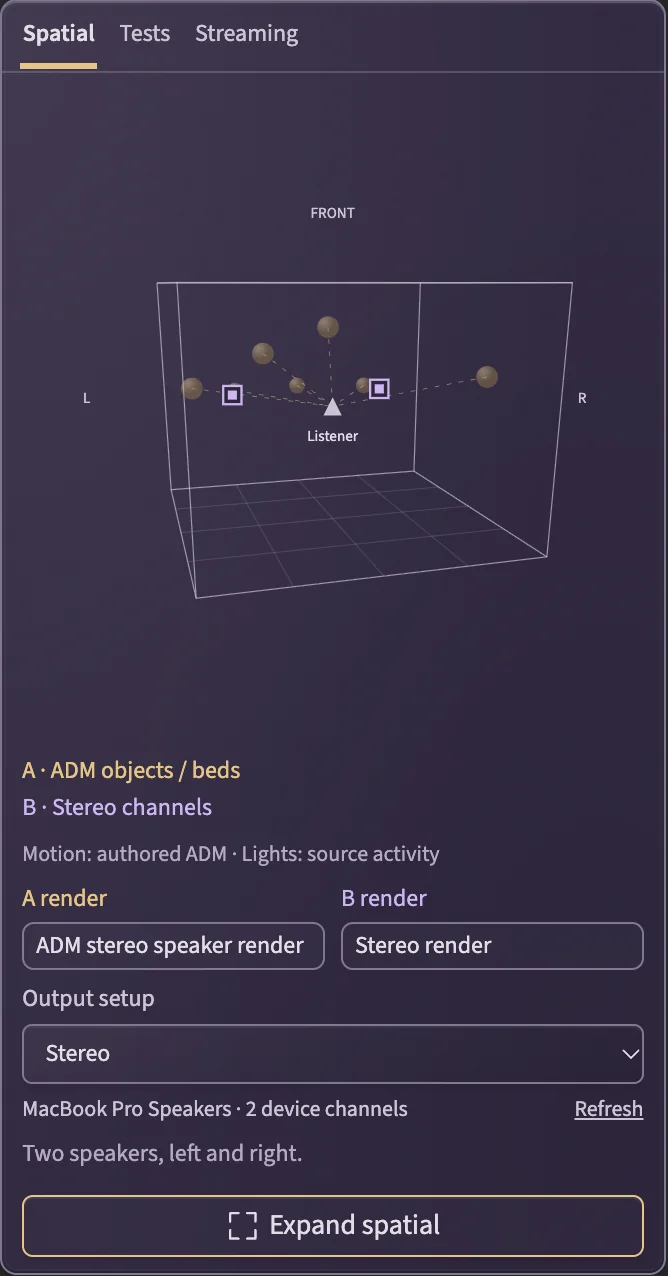
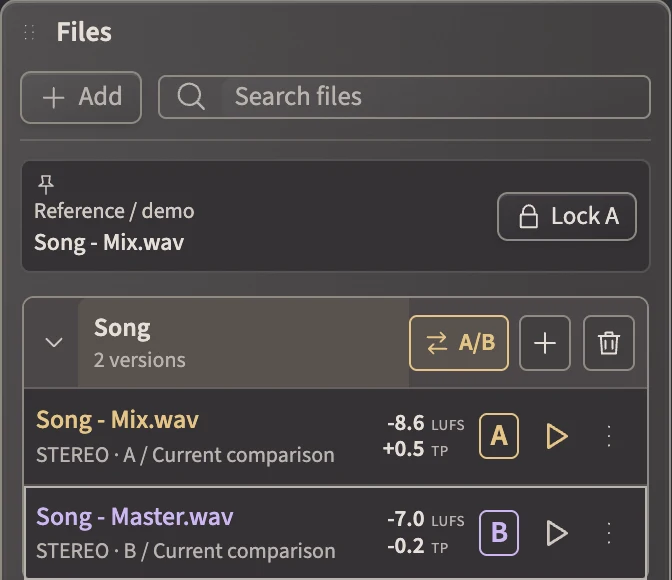
列表中的每个文件都显示自己的响度和真峰值。把一个文件拖放到另一个文件上,就会把它们叠放为同一首歌的不同版本,每个叠放都有 A/B、Add version 和自己的 Clear。Lock A 让你的参考或小样留在 A,同时在 B 中逐一切换其他歌曲和版本。
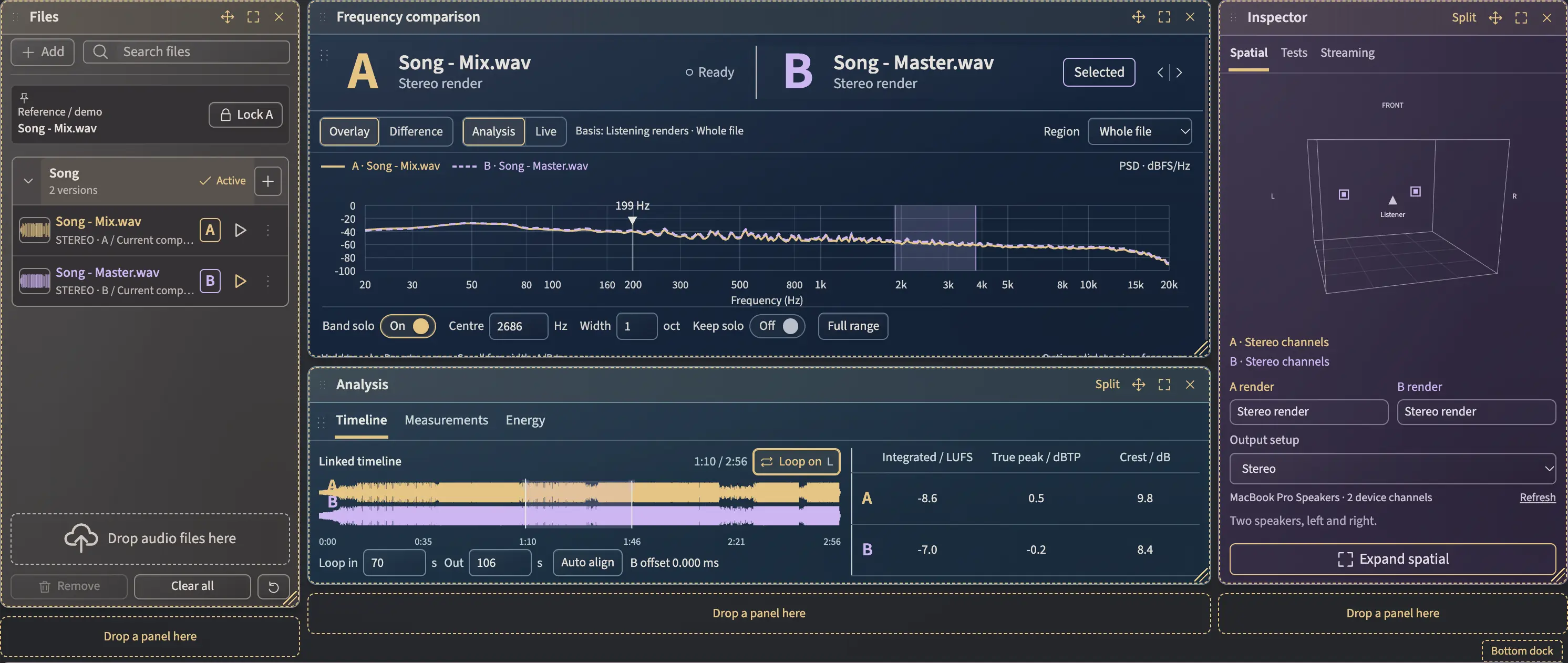
Press Arrange and every panel gets its handles: files, spectrum, timeline, measurements, spatial, tests, streaming and the player. Drag one to a new place, resize it, float it, split a combined panel into its parts or hide it. Save the layout as a workspace, set it as your default, and every project keeps its own.
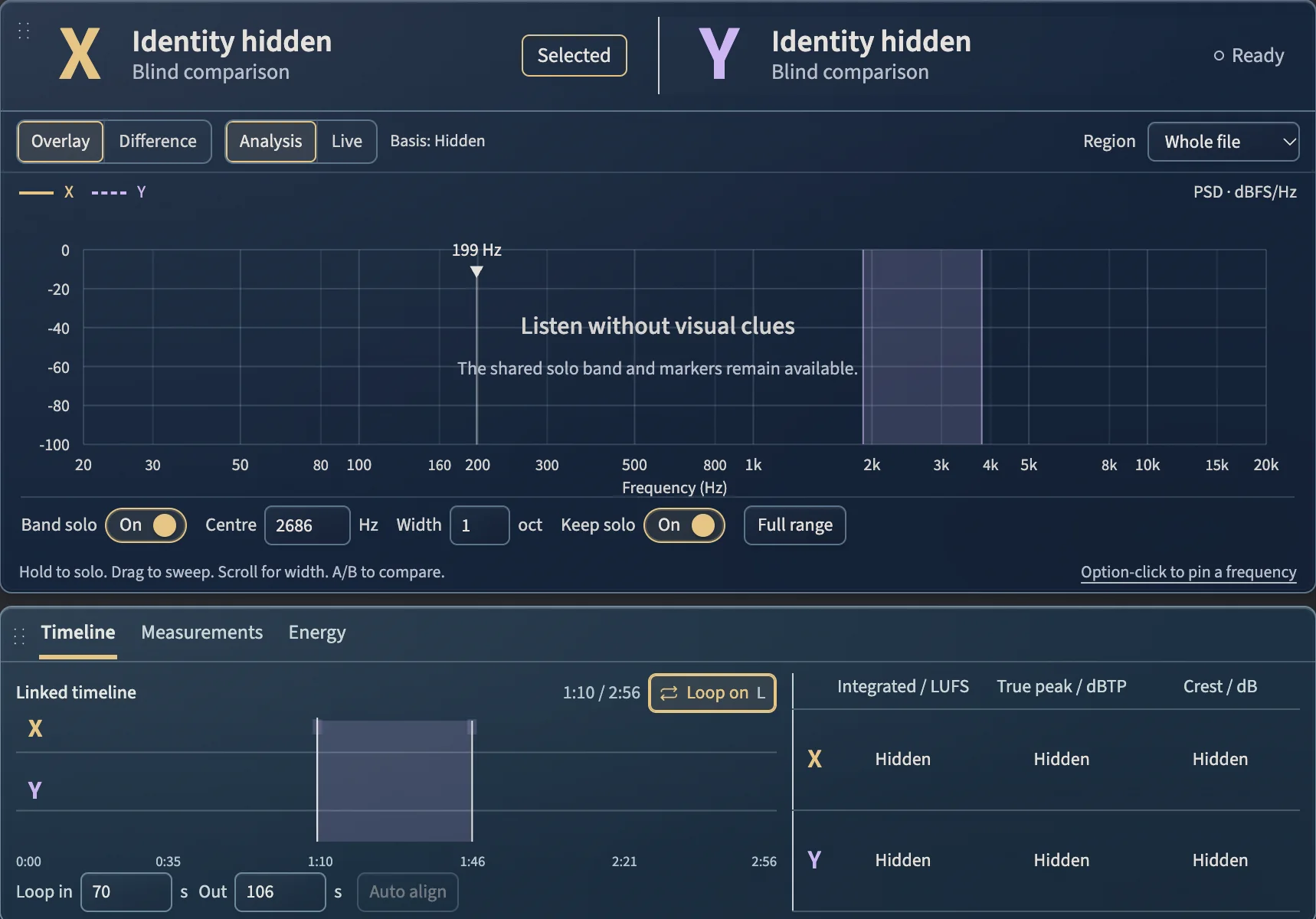
Shift+B 会隐藏名称、波形、读数和空间线索,然后把 A 和 B 随机分配为 X 和 Y。在同一循环、同一独奏频段上用 X、Y 或 S 对比,选定后揭晓,再开始新一轮重新抽取。
把 A 和 B 画在同一图表上,或从 A 中减去 B,在可缩放的刻度上查看哪一方在何处能量更多。Analysis 对整个文件或循环区段取平均;Live 跟随播放位置。
两个文件的综合响度与短期响度、真峰值、响度范围和峰值因数,以及速度和调性估计,可针对整个文件或循环区段。还有随时间变化的能量,以及同一时间线上的两条波形。
COMPARE 会在 A 和 B 中找到匹配的段落,并给 B 一个播放偏移。不会更改任何文件,也不会拉伸速度;匹配不明确时保持原样。
对 A 和 B 运行同一个聆听测试:带可选车内噪声的汽车平衡、俱乐部平衡、带单声道选项的小型手机扬声器,或带可选 AAC 或 Opus 往返编码的流媒体响度预览。全部都是在你的电脑上生成的模拟。
把对比连同文件、偏移、循环、标记和布局一起保存,之后从上次停下的地方打开。便携副本会一并带上音频。你的音频文件绝不会被更改。
同一布局的两种外观,或跟随系统。Space 播放,A 和 B 选择音源,S 切换,L 循环。
COMPARE 1.1 adds 29 modules for the work around the mix: null tests, EQ match, stems that must add up, deliveries that must come from the master, codec overs, mic delay, esses per minute, and tests for the plug-ins and gear you build. Each one measures and explains how to read it. None of them tells you what is good.
On Mac now. The Windows version follows.

Modules stay out of the way. Add one from the Modules menu, or open a role workspace and get three at once.
Up to 12 named tabs per project, three modules per tab. Every tab shares the same files and results.
How to use it, what it shows, how to read it. Measurements and explanations, never a verdict.


For people who build plug-ins and gear. Mac first.

你的文件只留在此浏览器中,绝不会上传。
A 与 B · PSD · dBFS/Hz
从你的两个文件测得的读数会显示在这里。
空格键播放 AB切换
The full tour of the app and the plug-in: files, Spotify and your DAW, Atmos and other plug-ins, with the difference chart, loudness, delivery checks and plug-in measurements. Pick a chapter to jump straight to it.
This is RTM COMPARE. It plays your versions side by side, at the same point and at the same level, and it shows you what's really different between them. It comes two ways, and you get both. There's the app, which is where you do the deep work, and there's the plug-in, which sits on your mix bus in your DAW. One licence unlocks both, on Mac and Windows, and you can try it free for fourteen days. We'll learn everything in the app first, because the plug-in works the same way.
Here's the screen. Your files go on the left. In the middle are A and B, the two things you're comparing, with their frequency chart, and under it the timeline and the numbers. On the right are the spatial view, the listening tests and the streaming preview, and the transport is along the bottom. Sound comes in from files, from other apps on your Mac, or from your DAW through the plug-in, and it goes out through whatever output your Mac is using, at the level of this Output knob. Whatever you do in here, your files are never changed.
So let's load a mix and its master. As soon as they're read, each file shows its loudness and its true peak, and the first one becomes A, the second becomes B. Space plays, and S switches between them at exactly the same point in the song. Now turn on Match level. COMPARE turns the louder one down to the quieter one, it never boosts anything, so now you're comparing sound, not volume. Lock A to keep your reference in place, drag on the timeline to loop the chorus, and if one file starts a little later, Auto align lines B up to A without stretching anything. And if you don't trust your ears, press Shift B. A and B become X and Y, the names and numbers disappear, you pick the one you like, and Reveal tells you which one it was.
Most songs have more than two versions, so here's how to keep them tidy. Drag one file onto another and they become a stack, one song with all its versions together. Choose Compare on the stack, and the mix goes to A and the newest master to B, and the older versions wait in the history, one click away. Got a new bounce? Replace file swaps it in the same slot and measures it again, and if you bounced over the same file, just press R, or Re-read, and everything updates. Stacking never moves or deletes your files.
Now let's see it. The chart shows A as a solid line and B as a dashed line on the same scale, and Difference shows A minus B, so above zero A has more, and below zero B has more. You can zoom right into the chart: scroll to zoom into the frequencies, hold Shift and scroll to zoom the level, Auto centre keeps the curve in the middle, and Fit shows everything again. Zooming only changes the picture, never the sound. And here's the best part, hold and drag on the chart, and you only hear that area. Turn on Keep solo and press S, and you're comparing just that band, and with Zoom to solo on, the chart zooms right into it. Under the chart you've got the numbers side by side: loudness, the loudest three seconds, true peak, loudness range, crest, and a BPM and key estimate. Analysis is the average of the whole file or your loop, and Live follows the playhead as it plays.
Last step on the same pair: will it translate? Tests lets you hear both versions in a car with cabin noise, in a club, or on a phone with a mono speaker. They're approximations, not one particular car, but if your vocal disappears on the phone, you'll hear it here first. And Streaming preview turns both down the way a streaming service would, or runs them through AAC or Opus, all on your computer, nothing is uploaded.
So far we've used files, but you don't even need one. Click Stream, and you'll see every app that's playing sound on your Mac. Tick the one you want, Spotify or your DAW, and it streams into COMPARE while you keep hearing it as normal. The first time, macOS asks if COMPARE can record system audio, so allow it, and if you missed that, it's in System Settings, Privacy and Security, Screen and System Audio Recording. Now open the picker next to B, and the app is right there under Apps. Choose it, and B is now whatever that app is playing, measured live, with its curve right on the chart. And nothing is recorded, it's only read while it plays.
And if you'd rather stay in your session, there's the plug-in. Put COMPARE on your mix bus, and your live mix becomes A. Load a reference as B, and it plays in time with your session, so when you jump around the timeline, the reference follows. Everything you just learned is here, Match level, the chart, band solo, EQ Match, Blend and the Car, Club and Phone tests, with the same keys: A and B, S to switch, Shift B for a blind test. The heavier tools stay in the app: streaming from other apps, the streaming encodes, the plug-in analysis and Atmos.
Everything else in COMPARE lives in modules, and COMPARE is modular, so first let's make room. Click Arrange, and you can drag any panel somewhere else, resize it or float it, then Done arranging. You can add any module from the Modules menu, just type what you want to check, like punch or phase or vinyl. But the best way in is tabs. Click the plus, pick a workspace for your job, and it opens in its own tab with the three modules that job uses most, with room to work. Your files are shared across every tab, each tab keeps its own layout, and you can have up to twelve. Save layout keeps the tab you're in, Save setup keeps all your tabs, and saving the project remembers your files, your A and B, your loop and your layout. Save portable copy puts the audio inside too, so you can send it to someone.
For producers, open the Producer workspace. Sections & Lift maps your song into its parts and shows how much the chorus lifts over the verse, so load a reference as B and you can see if your drop lifts as much as theirs, in dB. Null & Diff tells you exactly what changed between two bounces, and Low-End Lab and Band Punch show you what's going on at the bottom and how hard each octave hits.
For mixers, the Mixing workspace. Vocal Balance measures how loud the vocal sits over the music, from the mix and its a cappella. Stem & Alt-Mix checks what each alt mix leaves out before you send anything to the label. EQ Match shows the EQ that would bring B toward A, Live Tips shows where your mix sits against a reference while it plays, and Stereo & Phase shows width per band and where you lose level in mono. And if you record, Mic Align and Sibilance & Plosives are in the Recording workspace.
For mastering, start with Mastering Delta. It shows exactly what the master changed against the mix, in level, in tone, in width and in dynamics, all in one place. At the end of the job there's Family Check. Load the approved master and every file you made from it, the sixteen bit, the MP3, the clean, the instrumental, and it checks that each one really came from that master. Delivery QC checks a file for clips, overs, DC, silence, real bit depth and clicks in one go, and Codec Overs shows where your master goes over zero dB true peak once it's encoded. And there's Vinyl Premaster and Album Sequence when you need them.
Working in Atmos? Load the ADM file and the stereo master, and you can A/B them on headphones or on speakers, all the way up to 7.1.4, with the objects moving in this 3D view. And Atmos Conformance folds the Atmos master to stereo and checks it against your stereo master, in level, length and timing.
And the last workspace is for people who build plug-ins or gear. Designer lets you pick any Audio Unit or VST3 on your Mac and measure what it really does. Here's our PEAK2. Frequency & Phase sends a sweep through it, and it comes back flat. Latency Check shows the delay a plug-in reports against the delay it really has, at every sample rate, and here they match everywhere, which is exactly what you want to see. Harmonics & Distortion shows what it adds. Then in Dynamics, I turn the drive up, and Dynamics Curve measures the real threshold, knee, attack and release, not what the knobs say. Noise, Idle & Tails checks what it does at silence and how much CPU it uses. There's also Aliasing, Plugin A/B to compare two plug-ins or two builds, and a Torture Test for every sample rate and block size, and with a loop cable you can measure your hardware too.
So that's RTM COMPARE: listen fairly, see the difference, and go as deep as your job needs. The app and the plug-in, on Mac and Windows. Try it free for fourteen days, the link's below, and go hear what's really different, and what's just louder.
€33.00 · 您购买的是一次性付费许可。
Free with 4 or more different plug-ins in one order. We add RTM COMPARE to your RTM account within a day of your order.
您购买的是一次性付费许可。
适用于 macOS 和 Windows 的一个应用和一个插件;一个许可证同时解锁两者。
macOS 14.4 或更高版本,Apple silicon 和 Intel · Windows