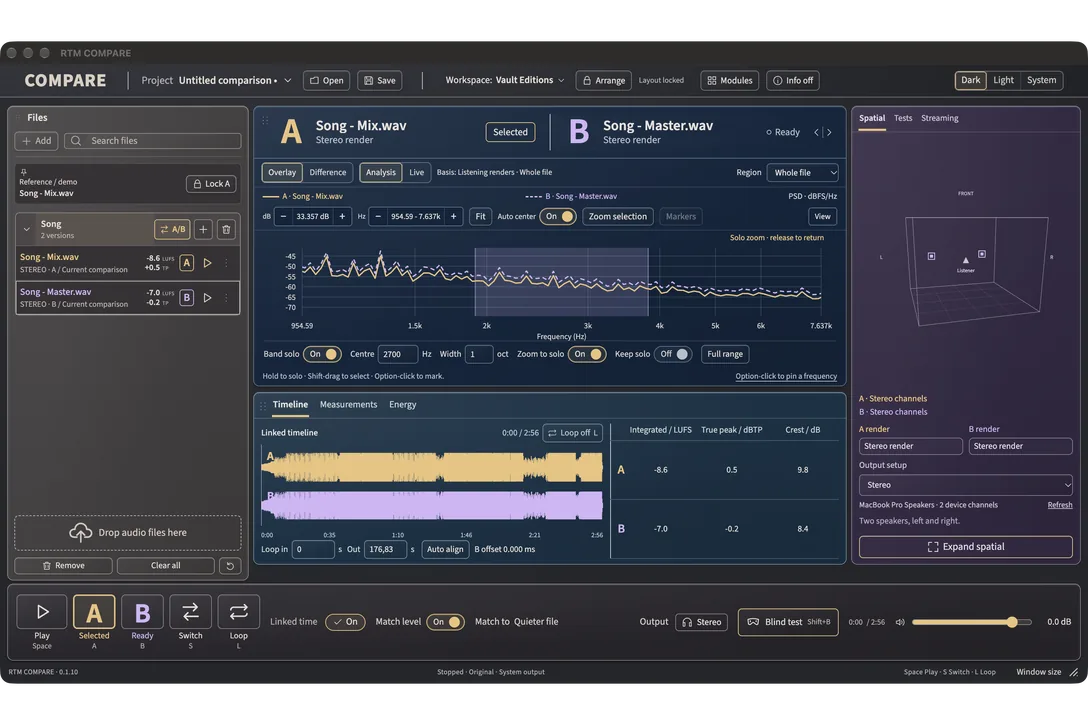
RTM COMPARE는 하나의 앱과 하나의 플러그인으로 된 궁극의 비교 및 측정 도구입니다. 믹스, 마스터, 버전과 레퍼런스, Spotify와 다른 앱, 실시간 DAW, Atmos와 스테레오, 플러그인끼리 비교하세요. 그리고 실제로 무엇이 있는지 측정하세요: 차이, 라우드니스와 트루 피크, 납품 검사, 코덱 오버, Atmos 적합성, 그리고 플러그인의 레이턴시, 커브와 왜곡.
COMPARE는 모든 파일을 같은 방식으로 측정하고 어떤 두 파일이든 하나의 재생 헤드에서 같은 라우드니스로 재생하므로, 레벨이 아니라 차이를 듣게 됩니다. 그리고 그 차이가 어디에 있는지 보여줍니다: 차트에서, 측정값에서, 그리고 믹스 주변 작업을 위한 29개의 모듈에서.
레벨 매칭
어떤 두 파일이든, 같은 라우드니스로.
Match level을 켜면 A와 B 중 더 큰 쪽이 더 작은 쪽의 측정된 라우드니스로 내려갑니다. 더 작은 파일은 원래 레벨 그대로이며, 어떤 것도 올리지 않습니다. A, B 또는 S로 전환해도 재생 위치는 루프 안이든 밖이든 그대로 유지됩니다.
더 큰 파일은 내려가고, 올라가는 것은 없습니다
Linked time으로 하나의 재생 위치 유지
L로 구간 루프
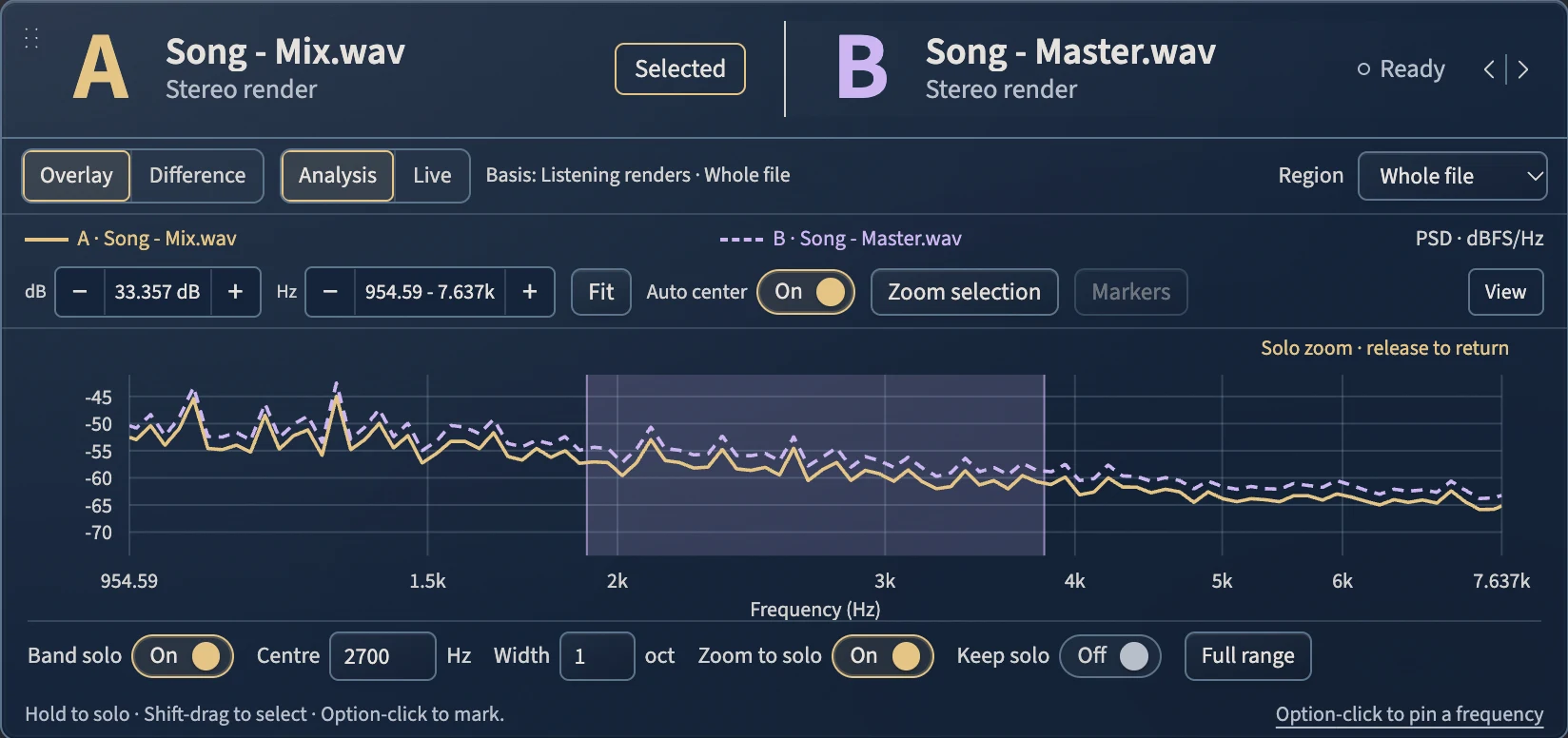
스펙트럼 확대
판단하고 있는 주파수로 확대하세요.
스펙트럼을 주파수와 레벨 모두로 확대합니다. Shift를 누른 채 범위를 드래그하고 Zoom selection을 누르면 그 범위가 차트를 채우고, Fit은 화면에 보이는 것에 맞춰 레벨을 조정하며, Auto center는 선을 화면 안에 유지합니다. 대역을 솔로하면 화면이 따라가고, 솔로를 해제하면 원래 화면으로 돌아갑니다. 확대는 화면만 바꾸며 오디오나 측정값은 바꾸지 않습니다.
20 Hz~20 kHz 전체에서 1/24 옥타브까지
Shift 드래그 후 Zoom selection
화면이 솔로를 따라갔다가 돌아옵니다
밴드 솔로
하나의 밴드에서 A/B.
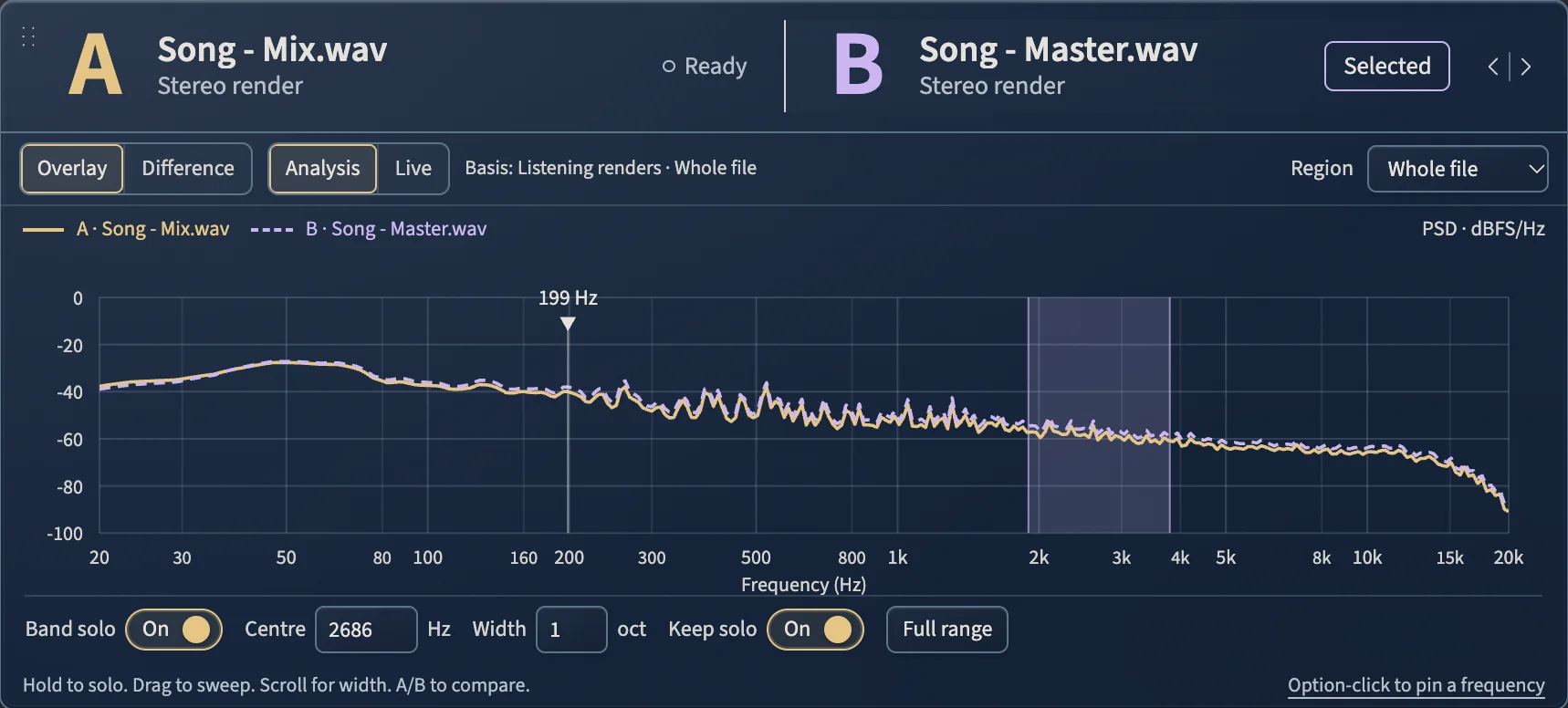
스펙트럼을 누르고 있으면 그 밴드만 재생됩니다. 드래그해 스윕하고, 스크롤해 폭을 바꾸고, A, B 또는 S를 눌러 같은 순간 같은 밴드 안에서 소스를 전환하세요. 중심 주파수를 Hz로, 폭을 옥타브로 입력하거나 Keep solo로 고정할 수 있습니다. Option-클릭으로 다시 확인할 주파수를 표시합니다.
눌러서 솔로, 드래그해 스윕
A와 B에 같은 밴드
프로젝트와 함께 저장되는 주파수 마커
ADM과 스테레오
ADM 파일을 스테레오 마스터 옆에.
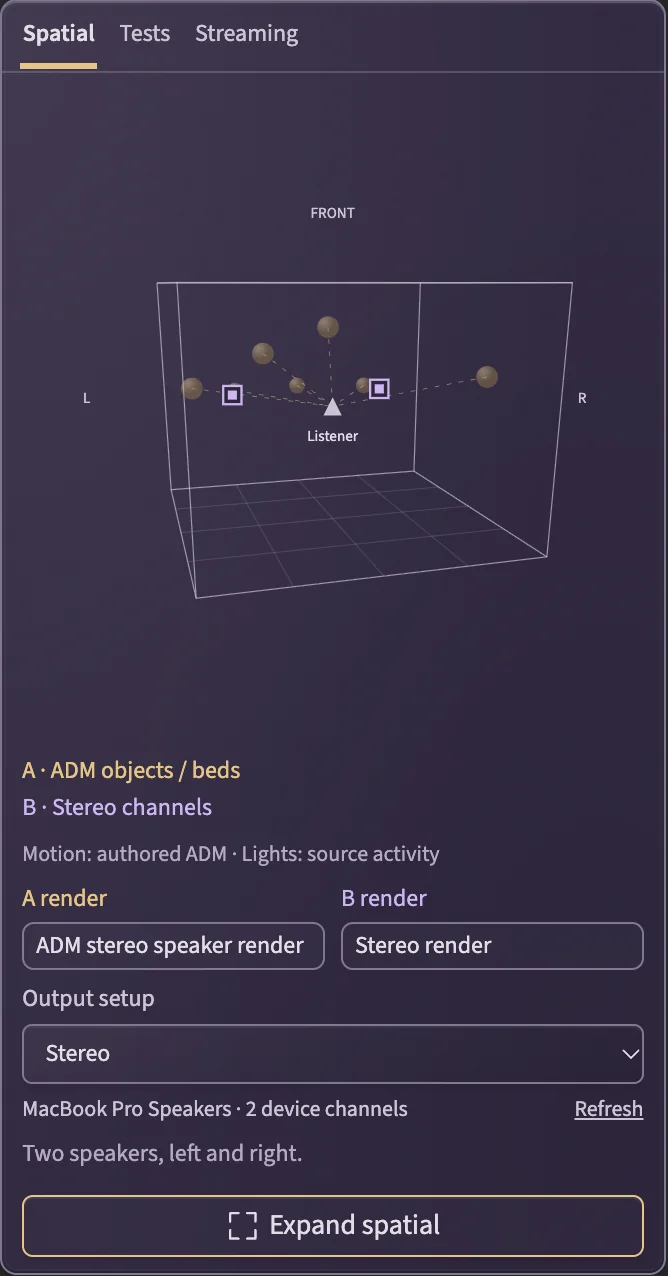
ADM BWF와 스테레오 파일을 같은 비교에 불러오세요. Spatial 뷰가 ADM 파일에 작성된 오브젝트와 베드를 스테레오 채널 옆에 그리고, 공유 타임라인에서 파일과 함께 움직입니다. 스테레오 스피커, 일반 바이노럴 헤드폰 프리뷰, 또는 5.1부터 7.1.4까지의 스피커 배치로 듣고, 같은 출력에서 A와 B를 전환하세요.
파일 자체의 메타데이터에서 읽은 오브젝트와 베드
스테레오, 헤드폰, 5.1부터 7.1.4까지
원본 파일은 절대 바뀌지 않습니다
송 스택
한 곡의 모든 버전을 쌓아서.
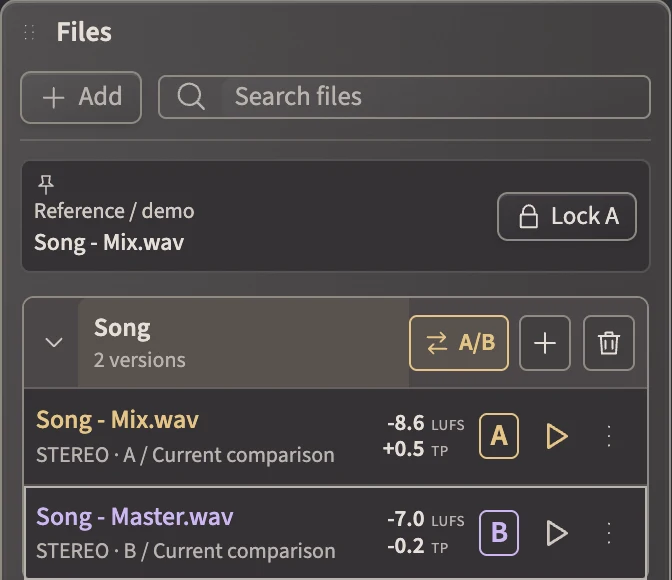
목록의 모든 파일에 각자의 라우드니스와 트루 피크가 표시됩니다. 파일 하나를 다른 파일 위에 놓으면 한 곡의 버전들로 스택되며, 스택마다 A/B, Add version, 전용 Clear가 있습니다. Lock A는 다른 모든 곡과 버전을 B에서 넘겨 보는 동안 레퍼런스나 데모를 A에 고정합니다.
모든 파일에 LUFS와 트루 피크
파일을 다른 파일 위에 놓아 스택
레퍼런스나 데모를 위한 Lock A
나만의 레이아웃
Move every panel where you want it.
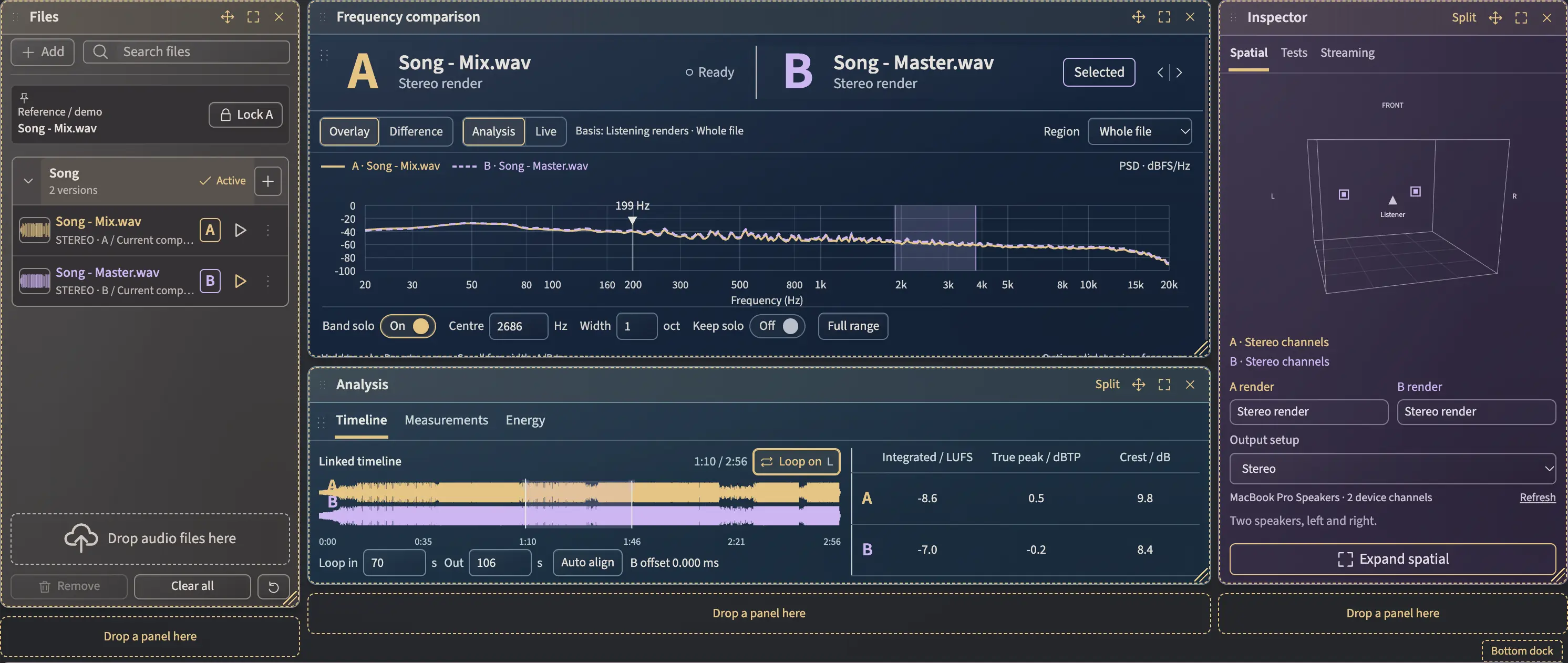
Press Arrange and every panel gets its handles: files, spectrum, timeline, measurements, spatial, tests, streaming and the player. Drag one to a new place, resize it, float it, split a combined panel into its parts or hide it. Save the layout as a workspace, set it as your default, and every project keeps its own.
이동, 크기 조정, 플로팅, 분할, 숨기기
레이아웃을 워크스페이스로 저장
프로젝트마다 자기 레이아웃 유지
블라인드 테스트
먼저 맞히고, 그다음에 보세요.
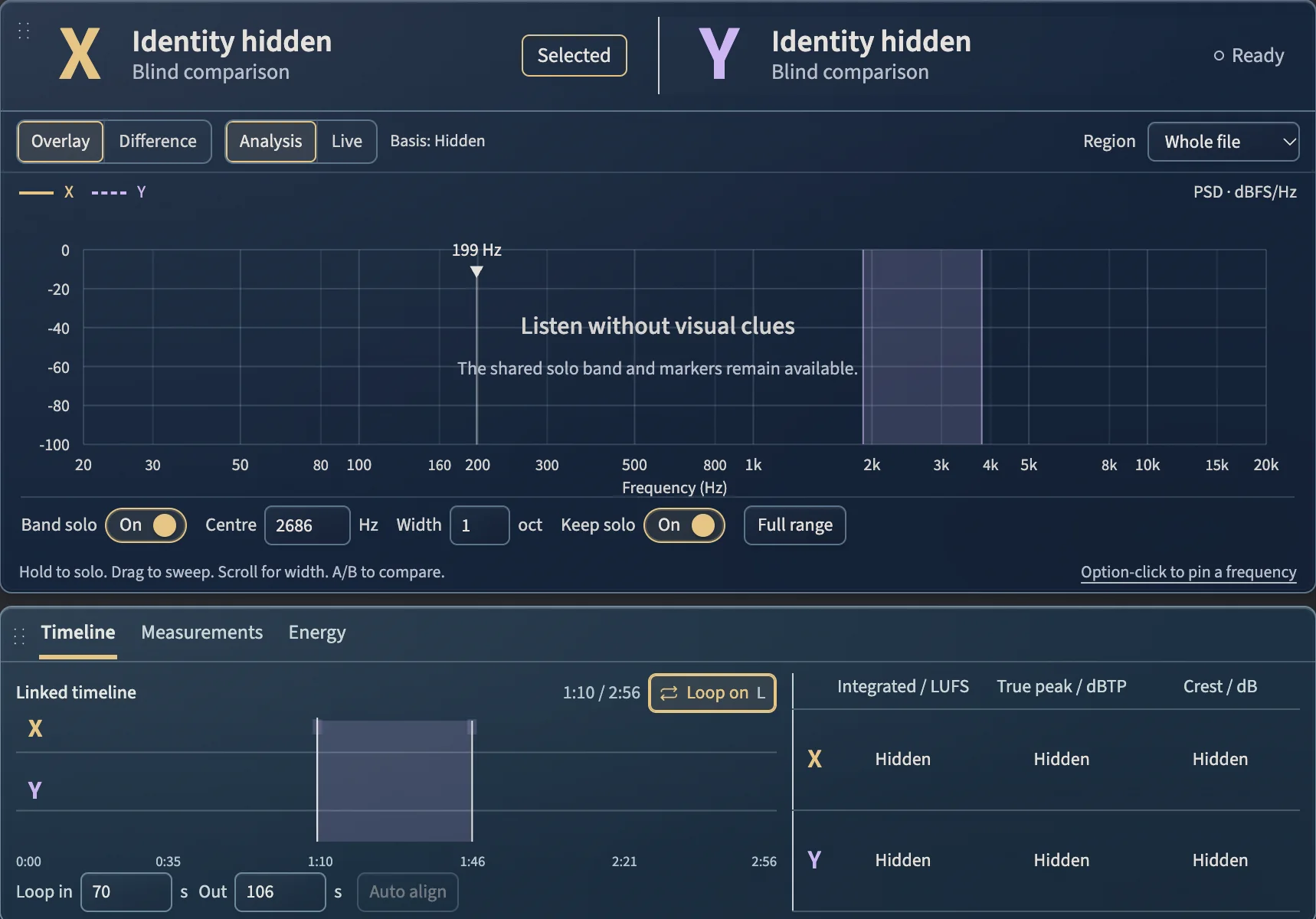
Shift+B는 이름, 파형, 측정값, 공간 단서를 숨긴 뒤 A와 B를 무작위로 X와 Y에 배정합니다. 같은 루프와 같은 솔로 밴드에서 X, Y 또는 S로 비교하고, 선택한 뒤 공개하고, 새 라운드로 다시 섞으세요.
이름과 측정값 숨김
라운드마다 무작위 X와 Y
공개한 뒤 새 라운드
오버레이 또는 차이
A와 B를 한 차트에 그리거나, A에서 B를 빼서 어느 쪽이 더 많은 에너지를 가졌는지 확대 가능한 스케일로 보세요. Analysis는 파일 전체나 루프를 평균하고, Live는 재생 위치를 따라갑니다.
모든 측정값을 나란히
인티그레이티드 및 숏텀 라우드니스, 트루 피크, 라우드니스 레인지, 크레스트 팩터, 그리고 템포와 키 추정값을 두 파일 모두, 파일 전체 또는 루프에 대해 보여 줍니다. 시간에 따른 에너지와 한 타임라인 위의 두 파형도 있습니다.
자동 정렬
COMPARE가 A와 B에서 일치하는 구간을 찾아 B에 재생 오프셋을 줍니다. 파일은 바뀌지 않고 템포도 늘어나지 않으며, 일치가 불분명하면 그대로 둡니다.
자동차, 클럽, 폰, 스트리밍
A와 B에 같은 청취 테스트를 적용하세요: 선택 가능한 실내 소음이 있는 자동차 밸런스, 클럽 밸런스, 모노 옵션이 있는 작은 폰 스피커, 또는 선택 가능한 AAC 또는 Opus 라운드 트립이 있는 스트리밍 라우드니스 프리뷰. 모두 컴퓨터에서 만들어지는 시뮬레이션입니다.
프로젝트
파일, 오프셋, 루프, 마커, 레이아웃과 함께 비교를 저장하고, 멈춘 곳에서 다시 여세요. 포터블 사본은 오디오를 함께 담습니다. 오디오 파일은 절대 바뀌지 않습니다.
다크, 라이트 또는 시스템
같은 레이아웃의 두 가지 마감, 또는 시스템 설정을 따릅니다. Space는 재생, A와 B는 소스 선택, S는 전환, L은 루프입니다.
COMPARE 1.1
Measure the job, not just the sound.
COMPARE 1.1 adds 29 modules for the work around the mix: null tests, EQ match, stems that must add up, deliveries that must come from the master, codec overs, mic delay, esses per minute, and tests for the plug-ins and gear you build. Each one measures and explains how to read it. None of them tells you what is good.
On Mac now. The Windows version follows.
29modules
5roles
20workspace presets
12tabs per project
A role workspace: three modules beside the spectrum, each showing up to five readings. Focus opens one over the whole window.
Hidden until you want them
Modules stay out of the way. Add one from the Modules menu, or open a role workspace and get three at once.
Tabs that talk to each other
Up to 12 named tabs per project, three modules per tab. Every tab shares the same files and results.
A guide in every module
How to use it, what it shows, how to read it. Measurements and explanations, never a verdict.
Mastering 9 modules
Null & DiffLines B up with A and shows what changed, where, and by how much.
Family CheckWhether each delivery (clean, instrumental, MP3) comes from the hero master.
Delivery QCClips, overs, DC, silence, real bit depth, bandwidth, hum and clicks in one file.
Codec OversWhere AAC and Opus encodes of the master go over, and by how much.
Mastering DeltaWhat mastering changed between a mix and its master: level, tone, width and dynamics.
Stereo & PhaseWidth and correlation per band, and where the mono sum loses level.
Album SequenceThe loaded masters as an album: order, gaps and level track to track.
Vinyl PremasterSide length, low-end phase, sibilance and inner-groove readings for a cut.
Atmos ConformanceThe ADM master folded to stereo against the stereo master: level, length and timing.
Mixing 5 modules
EQ MatchThe EQ that brings B toward A, band by band, as points you can drag. Listen to B + EQ before you touch your own EQ.
Stem & Alt-MixDo the stems add up to the mix, and what an alt mix leaves out.
Vocal BalanceHow loud the vocal sits over the music, from a mix plus its instrumental or a cappella.
Band PunchPunch and crest per octave, A against B, on the same hits.
Low-End LabLow hits, held low notes and their pitch, and the pump of the low end.
Recording 2 modules
Mic AlignDelay, polarity and comb loss between two mics on one source.
Sibilance & PlosivesEsses and pops per minute of singing, take against take.
Producer 3 modules
Sections & LiftThe song's parts, lettered, and how much one part lifts over another.
Live TipsWhile A plays, where its balance sits against B or a profile, window by window.
ProfilesA bank of your own measured reference tracks, and where yours sits inside it.
Designer 10 modules
For people who build plug-ins and gear. Mac first.
Frequency & PhaseLevel, phase and delay per frequency, left and right.
Harmonics & DistortionHarmonics added at each level, even and odd, and THD.
Latency CheckThe delay a plug-in reports against the delay it really has, at each rate.
Dynamics CurveMeasured threshold, ratio, knee, attack and release.
AliasingTones folded back below Nyquist, and how strong.
IntermodulationNew tones made when two tones pass through together.
Noise, Idle & TailsNoise and DC at silence, and how long it rings on.
Plugin A/BTwo plug-ins or two versions, on test signals or music.
Music ThroughA section of a real song through the plug-in, then before and after as A and B.
Torture TestEvery sample rate and block size: errors, silence and results that change.
사운드 랩
두 파일. 맞추고, 블라인드로.
파일은 이 브라우저 안에만 있습니다. 업로드되지 않습니다.
A아직 파일 없음
B아직 파일 없음
두 파일을 불러오세요
0:00 / 0:00
어느 쪽이 A일까요?
스펙트럼
A와 B · PSD · dBFS/Hz
두 파일에서 측정한 값이 여기에 표시됩니다.
스페이스재생AB전환
Tutorial · 10:32
무엇이든 비교하세요. 실제로 무엇이 있는지 측정하세요.
The full tour of the app and the plug-in: files, Spotify and your DAW, Atmos and other plug-ins, with the difference chart, loudness, delivery checks and plug-in measurements. Pick a chapter to jump straight to it.
Read the transcript
Intro
This is RTM COMPARE. It plays your versions side by side, at the same point and at the same level, and it shows you what's really different between them. It comes two ways, and you get both. There's the app, which is where you do the deep work, and there's the plug-in, which sits on your mix bus in your DAW. One licence unlocks both, on Mac and Windows, and you can try it free for fourteen days. We'll learn everything in the app first, because the plug-in works the same way.
A tour of the screen, and where sound goes
Here's the screen. Your files go on the left. In the middle are A and B, the two things you're comparing, with their frequency chart, and under it the timeline and the numbers. On the right are the spatial view, the listening tests and the streaming preview, and the transport is along the bottom. Sound comes in from files, from other apps on your Mac, or from your DAW through the plug-in, and it goes out through whatever output your Mac is using, at the level of this Output knob. Whatever you do in here, your files are never changed.
Listen fairly: Match level, A/B, blind test
So let's load a mix and its master. As soon as they're read, each file shows its loudness and its true peak, and the first one becomes A, the second becomes B. Space plays, and S switches between them at exactly the same point in the song. Now turn on Match level. COMPARE turns the louder one down to the quieter one, it never boosts anything, so now you're comparing sound, not volume. Lock A to keep your reference in place, drag on the timeline to loop the chorus, and if one file starts a little later, Auto align lines B up to A without stretching anything. And if you don't trust your ears, press Shift B. A and B become X and Y, the names and numbers disappear, you pick the one you like, and Reveal tells you which one it was.
Versions: stacks, replace and re-read
Most songs have more than two versions, so here's how to keep them tidy. Drag one file onto another and they become a stack, one song with all its versions together. Choose Compare on the stack, and the mix goes to A and the newest master to B, and the older versions wait in the history, one click away. Got a new bounce? Replace file swaps it in the same slot and measures it again, and if you bounced over the same file, just press R, or Re-read, and everything updates. Stacking never moves or deletes your files.
See the difference: chart, zoom, band solo
Now let's see it. The chart shows A as a solid line and B as a dashed line on the same scale, and Difference shows A minus B, so above zero A has more, and below zero B has more. You can zoom right into the chart: scroll to zoom into the frequencies, hold Shift and scroll to zoom the level, Auto centre keeps the curve in the middle, and Fit shows everything again. Zooming only changes the picture, never the sound. And here's the best part, hold and drag on the chart, and you only hear that area. Turn on Keep solo and press S, and you're comparing just that band, and with Zoom to solo on, the chart zooms right into it. Under the chart you've got the numbers side by side: loudness, the loudest three seconds, true peak, loudness range, crest, and a BPM and key estimate. Analysis is the average of the whole file or your loop, and Live follows the playhead as it plays.
Will it translate? Car, club, phone, streaming
Last step on the same pair: will it translate? Tests lets you hear both versions in a car with cabin noise, in a club, or on a phone with a mono speaker. They're approximations, not one particular car, but if your vocal disappears on the phone, you'll hear it here first. And Streaming preview turns both down the way a streaming service would, or runs them through AAC or Opus, all on your computer, nothing is uploaded.
Stream from Spotify or your DAW
So far we've used files, but you don't even need one. Click Stream, and you'll see every app that's playing sound on your Mac. Tick the one you want, Spotify or your DAW, and it streams into COMPARE while you keep hearing it as normal. The first time, macOS asks if COMPARE can record system audio, so allow it, and if you missed that, it's in System Settings, Privacy and Security, Screen and System Audio Recording. Now open the picker next to B, and the app is right there under Apps. Choose it, and B is now whatever that app is playing, measured live, with its curve right on the chart. And nothing is recorded, it's only read while it plays.
The plug-in in your DAW
And if you'd rather stay in your session, there's the plug-in. Put COMPARE on your mix bus, and your live mix becomes A. Load a reference as B, and it plays in time with your session, so when you jump around the timeline, the reference follows. Everything you just learned is here, Match level, the chart, band solo, EQ Match, Blend and the Car, Club and Phone tests, with the same keys: A and B, S to switch, Shift B for a blind test. The heavier tools stay in the app: streaming from other apps, the streaming encodes, the plug-in analysis and Atmos.
Make room: layout, tabs and workspaces
Everything else in COMPARE lives in modules, and COMPARE is modular, so first let's make room. Click Arrange, and you can drag any panel somewhere else, resize it or float it, then Done arranging. You can add any module from the Modules menu, just type what you want to check, like punch or phase or vinyl. But the best way in is tabs. Click the plus, pick a workspace for your job, and it opens in its own tab with the three modules that job uses most, with room to work. Your files are shared across every tab, each tab keeps its own layout, and you can have up to twelve. Save layout keeps the tab you're in, Save setup keeps all your tabs, and saving the project remembers your files, your A and B, your loop and your layout. Save portable copy puts the audio inside too, so you can send it to someone.
For producers
For producers, open the Producer workspace. Sections & Lift maps your song into its parts and shows how much the chorus lifts over the verse, so load a reference as B and you can see if your drop lifts as much as theirs, in dB. Null & Diff tells you exactly what changed between two bounces, and Low-End Lab and Band Punch show you what's going on at the bottom and how hard each octave hits.
For mixers
For mixers, the Mixing workspace. Vocal Balance measures how loud the vocal sits over the music, from the mix and its a cappella. Stem & Alt-Mix checks what each alt mix leaves out before you send anything to the label. EQ Match shows the EQ that would bring B toward A, Live Tips shows where your mix sits against a reference while it plays, and Stereo & Phase shows width per band and where you lose level in mono. And if you record, Mic Align and Sibilance & Plosives are in the Recording workspace.
For mastering engineers
For mastering, start with Mastering Delta. It shows exactly what the master changed against the mix, in level, in tone, in width and in dynamics, all in one place. At the end of the job there's Family Check. Load the approved master and every file you made from it, the sixteen bit, the MP3, the clean, the instrumental, and it checks that each one really came from that master. Delivery QC checks a file for clips, overs, DC, silence, real bit depth and clicks in one go, and Codec Overs shows where your master goes over zero dB true peak once it's encoded. And there's Vinyl Premaster and Album Sequence when you need them.
Atmos
Working in Atmos? Load the ADM file and the stereo master, and you can A/B them on headphones or on speakers, all the way up to 7.1.4, with the objects moving in this 3D view. And Atmos Conformance folds the Atmos master to stereo and checks it against your stereo master, in level, length and timing.
For plug-in and gear designers (Designer)
And the last workspace is for people who build plug-ins or gear. Designer lets you pick any Audio Unit or VST3 on your Mac and measure what it really does. Here's our PEAK2. Frequency & Phase sends a sweep through it, and it comes back flat. Latency Check shows the delay a plug-in reports against the delay it really has, at every sample rate, and here they match everywhere, which is exactly what you want to see. Harmonics & Distortion shows what it adds. Then in Dynamics, I turn the drive up, and Dynamics Curve measures the real threshold, knee, attack and release, not what the knobs say. Noise, Idle & Tails checks what it does at silence and how much CPU it uses. There's also Aliasing, Plugin A/B to compare two plug-ins or two builds, and a Torture Test for every sample rate and block size, and with a loop cable you can measure your hardware too.
Wrap-up
So that's RTM COMPARE: listen fairly, see the difference, and go as deep as your job needs. The app and the plug-in, on Mac and Windows. Try it free for fourteen days, the link's below, and go hear what's really different, and what's just louder.